Turn an interior render into a video
Upload one finished still render and FORMAT turns it into a 15-second video that moves through the space, plus four close-up views. No camera path to animate, no frames to render, no prompt to write.
One still render in. One moving shot of the space out.
Three real FORMAT results. Each render was uploaded as a single still image, with no scene file, no camera path and no prompt.
Input · one still render
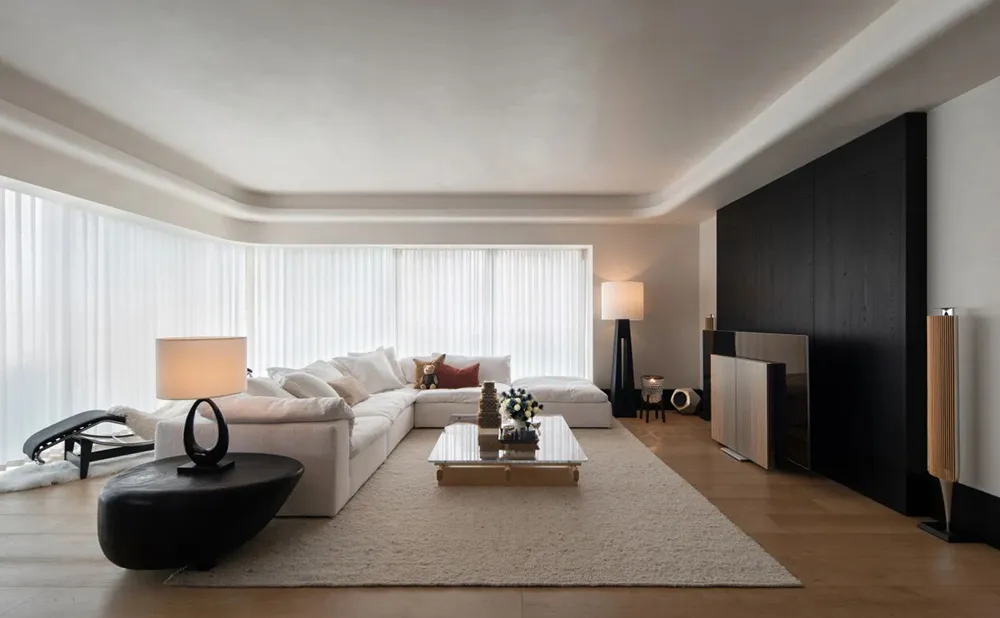
Output · 15-second video
Input · one still render
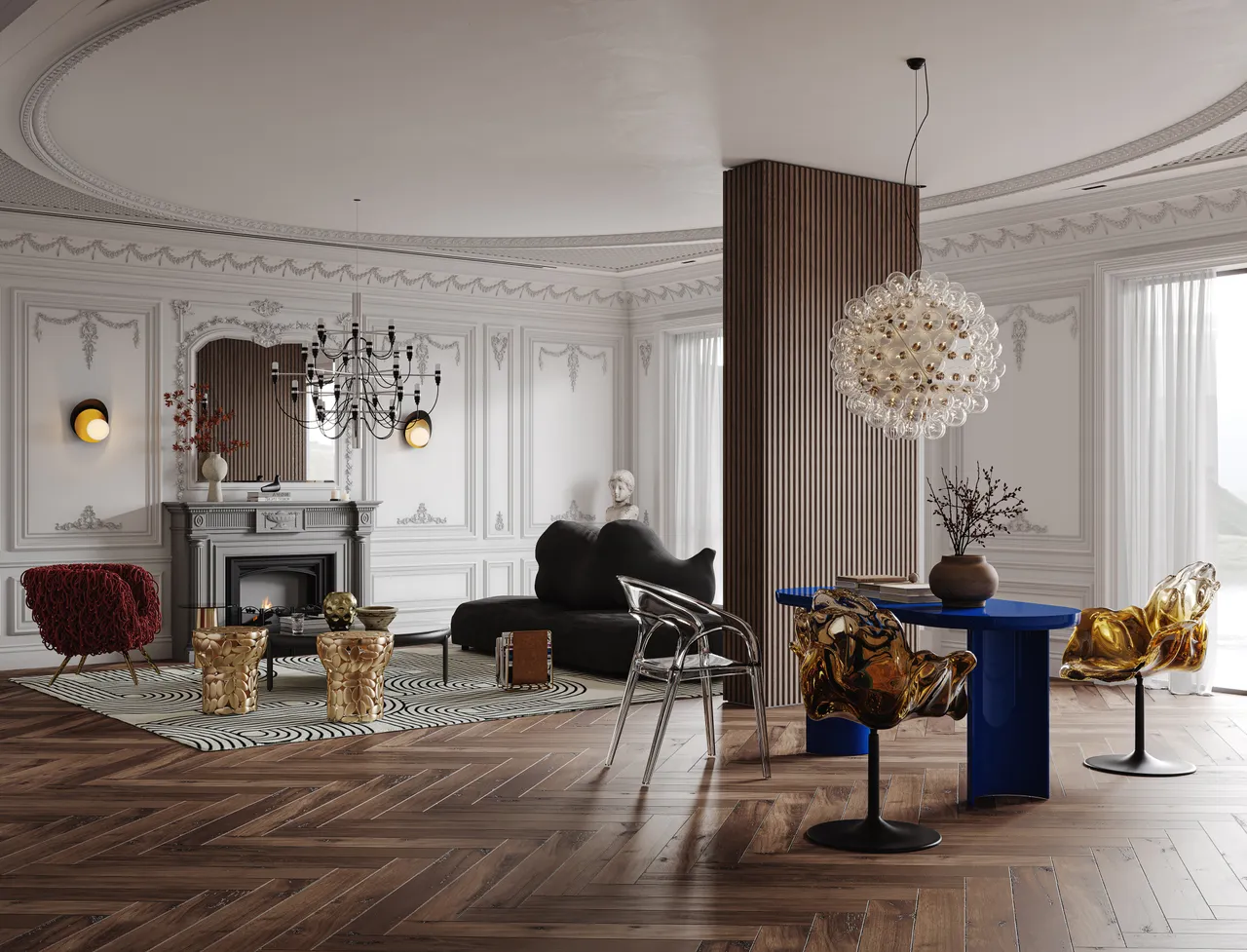
Output · 15-second video
Input · render
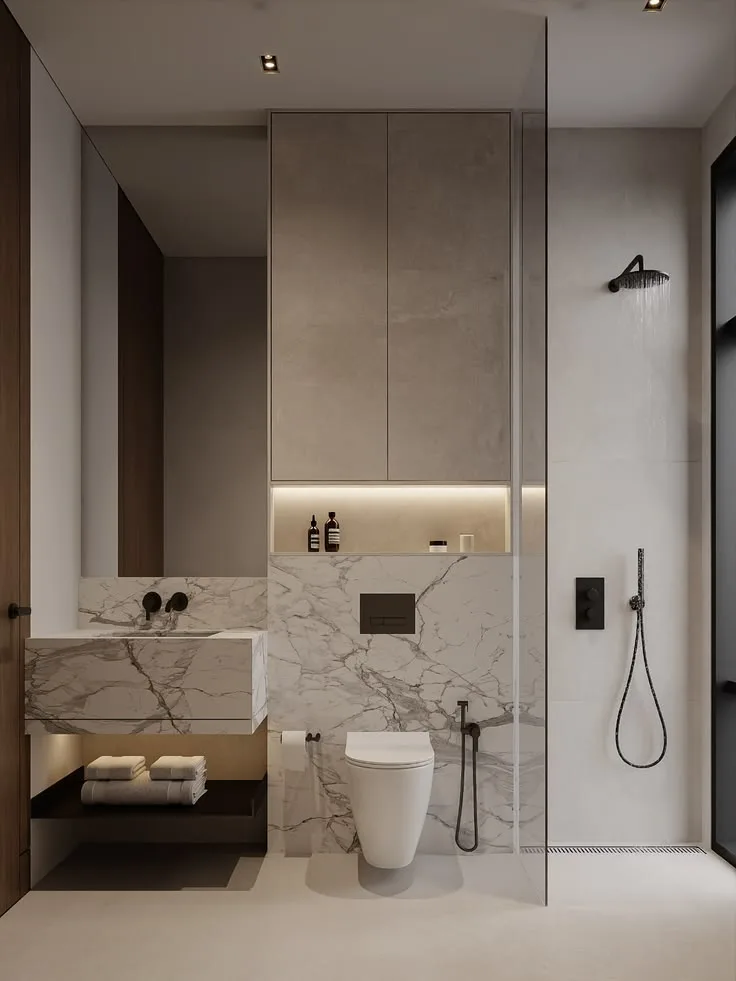
Output · video
What FORMAT makes from one render
- 15-second MP4 video, 720p: 1280×720 (16:9) or 720×1280 (9:16)
- Four close-up views of the same space, downloadable as images
- Five-move camera sequence: push in, truck left, boom up, truck right, push out
- Camera movement with depth and parallax, not a flat zoom-and-pan
- Optional 2K upgrade: 2560×1440 or 1440×2560
- Silent video, ready for your own music or voice-over
Rendering an animation vs. animating a render
A camera animation from your 3D software gives you full control, at the cost of setup and render time. FORMAT starts from the still you already rendered. Here is how the two compare.
| Aspect | Animation in your 3D software | FORMAT |
|---|---|---|
| What you need | The full 3D scene, a camera path and render settings | One finished still image: JPG, PNG or WEBP, up to 10 MB |
| Setup | Keyframe the camera, set the length and frame rate | Upload, choose 9:16 or 16:9, start |
| Rendering | Every frame renders like a still: 15 seconds is 360–450 frames at 24–30 fps | Generated in the cloud from your image; your workstation stays free |
| Camera control | Full control over path, lens and timing | A fixed five-move sequence chosen by FORMAT |
| Length | Any length | 15 seconds |
| Best for | Final films, long walkthroughs, exact camera paths | Quick motion versions of finished stills for presentations, portfolios and social posts |
How to prepare a render for FORMAT
01
Export the final, clean frame
FORMAT works only from the pixels you upload. Export the finished image without watermarks, UI, labels or text overlays.
02
Pick the ratio for where it will play
Choose 16:9 for presentations, websites and YouTube, or 9:16 for Reels, TikTok and Shorts. You can reframe the render to the chosen ratio inside FORMAT before generating.
03
Choose a view with depth
Wide views that show a foreground, middle ground and background give the camera room to move, and give FORMAT distinct areas to frame as close-ups.
04
Stay within the upload limits
One image per project, JPG, PNG or WEBP, up to 10 MB. If a PNG export is larger than 10 MB, save a high-quality JPG instead.
From render to video in FORMAT
01
Add Scene Image
Create a project, choose 9:16 or 16:9 and add your render.
02
Start Generating
FORMAT analyzes the space and prepares four close-up views: precise crops of your render or AI-rendered detail views of the same space.
03
Generate Video
Review the close-ups, then generate the 15-second video.
04
Download
Download the 720p video and the close-ups, or upgrade the video to 2K.
Pay per video, not per month
A 720p FORMAT video uses 100 Credits, and the optional 2K upgrade adds 25. Credits come in one-time packs, from $12.99 for 400 Credits, with no subscription. That works out to $2.60–$3.25 per 720p video, depending on the pack.
View PricingFrequently asked questions
Which rendering software does FORMAT work with?
- Any. FORMAT only needs the exported image, so renders from V-Ray, Corona, Enscape, D5 Render, Lumion, Twinmotion, Blender or SketchUp all work, as long as the file is a JPG, PNG or WEBP up to 10 MB.
Does FORMAT change my design?
- FORMAT is built not to redesign the space: furniture, materials and layout are meant to stay as they are while the camera moves. The close-ups are either precise crops of your render or AI-rendered detail views of the same space. As with any AI generation, review the result before you send it to a client.
Can I control the camera path?
- Not in the current version. Every video uses the same five-move sequence (push in, truck left, boom up, truck right, push out), so there is no shot to plan.
Can I use a photo instead of a render?
- Yes. Interior photographs work the same way as renders.
Does the video include sound?
- No. FORMAT videos are silent MP4 files, so you can add your own music or voice-over in any editor or social app.
Is there a watermark?
- No. FORMAT adds no visible watermark or badge to the videos and close-ups you download.
What resolution is the 2K upgrade?
- 2560×1440 for 16:9 videos and 1440×2560 for 9:16 videos. It upscales your finished 720p video.